
The Creator’s Android Setup: 7 Configs I Install on Every Phone
A creator-focused Android onboarding checklist for notifications, uploads, backups and cross-device sync—built for consistency.
If you publish content for a living, your phone is not just a device—it’s a production tool, a publishing console, and often your first line of defense against missed opportunities. A good Android setup reduces friction everywhere: fewer missed notifications, faster uploads, cleaner cross-device sync, and fewer “why didn’t this post go live?” moments. This guide gives you the exact onboarding checklist I use on every new Android phone so creators can keep momentum across email, social apps, cloud storage, and capture workflows. If you also want to think more strategically about channel growth, pair this setup with our guide on BBC’s YouTube strategy lessons for content creators and our practical breakdown of audience retention analytics for creators.
Why every creator needs a repeatable Android onboarding checklist
Phones fail creators when settings are left at defaults
Most creators don’t lose time because they lack talent or ideas; they lose time because their device is quietly working against them. Default Android settings are designed for the average consumer, not someone who depends on reliable uploads, synchronized notes, and urgent alerts from clients, editors, or brand partners. A strong onboarding checklist lets you standardize your phone so each new device behaves like the last one. That consistency matters even more when your workflow spans multiple services, which is why teams that operate like mini-media businesses often borrow ideas from social media archiving systems and signal-filtering workflows.
Consistency beats customization for daily publishing
The biggest trap with a new phone is over-customizing before the basics are stable. Creators need a predictable setup first: notification priorities, battery rules, backup automation, cloud sync, and app permissions that support production instead of interrupting it. When those layers are standardized, the phone becomes an extension of your editorial process rather than a source of variation. If you’ve ever had a post schedule thrown off by a dead cloud backup or a silenced alert, you already know why routines matter. For a wider operations mindset, see how automation can be measured in our guide to automation ROI in 90 days.
Onboarding should be written like a checklist, not remembered from memory
The best phone setups are documented. Instead of relying on memory every time you switch devices, keep a reusable onboarding checklist that covers account login, notification preferences, sync rules, app permissions, and backup verification. This approach is especially useful if you work across a personal creator phone and a backup device, because it ensures both phones behave the same way. It also helps reduce the “mystery breakage” that happens when an update changes a permission, a sync toggle, or a login session. Think of it as your personal content operations manual—similar in spirit to how publishers use positioning frameworks to stay authoritative in a fast-moving niche.
Config 1: Lock in account architecture before you install anything
Separate creator, personal, and recovery identities
The first thing I do is establish account architecture. That means deciding which Google account is the primary creator account, which one handles recovery, and whether a secondary account will be used only for backups, testing, or app sign-ins. This separation prevents chaos when you change phones, replace a SIM, or lose access to one service. It also helps you keep content-related data portable, which is especially important if you move between devices often or support multiple brands and channels. If you need to think about ownership and portability in a broader sense, our article on digital ownership lessons is a useful mindset shift.
Use passkeys and recovery methods before you need them
Creators rely on a wide mix of sign-ins: Google, Meta, TikTok, YouTube, Dropbox, password managers, scheduling tools, and sometimes client portals. The setup that saves you later is the one that includes passkeys, updated recovery email addresses, verified phone numbers, and 2FA backups. Do this first, because it’s much easier to configure security on a fresh device than to troubleshoot it after a lockout. It’s also where reliability starts: if your accounts are stable, your notifications, sync, and uploads are much less likely to fail due to forced re-authentication. For a practical security lens, see secure identity orchestration and safe onboarding patterns.
Record the device in your own inventory
I also log the device model, Android version, IMEI or serial number, and the date I configured it. That may sound overly operational, but it becomes incredibly useful when you’re troubleshooting app compatibility, media transfer bugs, or battery behavior after a major update. If you work with collaborators, a simple device log is one of the best low-effort admin habits you can adopt. The same principle shows up in infrastructure planning and vendor review, where you want a clear record of what is installed and what changed. For that reason, I recommend keeping your device record alongside other creator systems like your metrics tracker and market research notes.
Config 2: Tune notification management so only critical alerts get through
Create notification priority tiers by app and channel
Notification management is where Android can become either a productivity multiplier or a constant distraction engine. The goal is not to mute everything; it’s to make sure the right alerts come through at the right time. I group notifications into three tiers: urgent creator operations, useful but non-urgent updates, and everything else. Urgent alerts include direct messages from collaborators, uploads failing, calendar reminders, payment notifications, and security prompts. Useful but non-urgent alerts might include analytics digests, community comments, or scheduling confirmations, while promotions and low-priority app nudges should be muted or disabled.
Use Do Not Disturb with exceptions for your publishing stack
Do Not Disturb should not be a blunt instrument. Configure it so your publishing tools, calendar, and selected people can still break through during work hours, while everything else stays silent. This is especially valuable when you’re recording, writing, editing, or on deadline and don’t want a random app banner covering the screen at the wrong moment. The more you publish, the more your phone needs to behave like a studio control panel rather than a social feed. If you’re building an audience-heavy workflow, pair this with insights from channel retention analytics so you only keep the signals that help you grow.
Audit apps that hijack attention with default permissions
Many apps are installed with overly generous notification permissions and background activity rules. During setup, I review each app and ask one question: does this app help me publish, sell, or protect my content? If the answer is no, it probably should not be allowed to buzz, badge, or wake the screen. This small audit can dramatically reduce notification fatigue and make the phone feel calmer immediately. For teams trying to reduce cognitive clutter in high-volume environments, the same principle is behind signal filtering systems that surface only what matters.
Config 3: Set up auto upload so content never lives only on one phone
Turn on camera backup immediately after login
One of the most important creator settings is automatic media backup. I enable auto upload for the camera roll as soon as the relevant cloud app is signed in, because losing a shoot to a damaged phone is one of the fastest ways to lose production time. Ideally, your photos and videos should move into cloud storage automatically in the background, with uploads running on Wi‑Fi and charging when possible. This creates a safety net for raw clips, behind-the-scenes shots, thumbnails, and social story assets. If your content operation includes multiple devices, this is the foundation for dependable cross-device sync.
Choose one “source of truth” for files
The biggest cloud mistake creators make is storing files in too many places. Pick one main file home for raw media and working documents, then use mirrored folders or shared drives as needed. The purpose is not to reduce flexibility; it’s to reduce uncertainty when you need to find a draft, recover a clip, or hand off assets to an editor. When your file structure is clear, your phone becomes a reliable capture point rather than a dead-end storage pocket. For adjacent workflow thinking, our guide to automation patterns that replace manual workflows shows how standardization compounds over time.
Test upload behavior with real files, not just settings screens
Settings can look correct while uploads still fail in practice. After I turn on backup, I test with a short video, a high-resolution image, and a mixed network environment if possible—Wi‑Fi, mobile data, and battery saver off. This confirms that permissions, background data, and power rules are actually compatible with your content workflow. It also reveals whether your chosen app pauses uploads when the screen is locked or the device becomes idle. If your publishing strategy depends on quick turnaround, treating this as a live test instead of a checkbox is essential. It’s similar to how creators should validate monetization assumptions in volatile ad environments.
Config 4: Make battery and performance rules creator-friendly
Exclude mission-critical apps from aggressive battery optimization
Modern Android battery settings can be too aggressive for creator work. By default, some phones will delay syncing, pause background tasks, or suppress notifications for apps that need to stay alive. I whitelist mission-critical apps such as calendar, email, cloud storage, password manager, backup tools, and messaging apps used by collaborators. That keeps uploads moving and makes sure important notifications land when they should. If you’ve ever wondered why an upload stalled until you opened the app manually, battery optimization is often the culprit.
Balance performance with thermals during heavy capture days
If you shoot a lot of short-form video, live clips, or event coverage, performance settings matter more than people think. A creator phone that runs hot too quickly can throttle, drain batteries, and make the camera experience unpredictable. I prefer a setup that keeps the phone responsive without forcing every app into maximum performance mode all the time. For long shoot days, this is where accessories and cable quality matter too, and our guide on cheap vs quality USB-C cables can save you from a bad charging day.
Use adaptive habits, not just settings, to reduce drain
Settings alone won’t save battery if your workflow is inefficient. I also standardize habits such as plugging in during editing sessions, keeping brightness at a controlled level, and offloading large transfers before a shoot whenever possible. The point is to reduce friction during the moments that matter most: filming, uploading, and communicating. Think of it like a small-team ops process, where the win comes from repeated discipline rather than one magical feature. If you want a broader operations mindset, revisit automation ROI metrics and apply that lens to phone behavior.
Config 5: Build a backup strategy that protects content and recovery access
Back up both media and phone state
A creator’s backup strategy should include more than photos. You also want device settings, app data where possible, contacts, calendar entries, notes, and message histories that matter for business continuity. That way, replacing the phone doesn’t mean rebuilding your workflow from scratch. Android’s built-in backup tools are helpful, but I still recommend confirming exactly what is included and what is not, because some apps keep data outside the standard backup scope. When your business depends on speed, losing app state can be just as painful as losing footage.
Use layered backups: cloud, local, and account recovery
My preferred model is layered. Layer one is cloud backup for convenience and remote access; layer two is local transfer or a second storage location for resilience; layer three is account recovery controls so you can regain access if a service locks you out. This is especially valuable for creators juggling sponsorship deadlines and platform logins because account problems often create the biggest delays. You should also periodically verify that your backup isn’t just “enabled” but actually completing successfully. If you work across teams or publishers, the logic is similar to digital risk planning where one failure point can cascade into downtime.
Schedule backup checks like editorial audits
I recommend treating backup verification as a recurring task, not a one-time setup. Once a month, confirm that your latest images, contacts, messages, and device settings are present in the cloud and that you can restore them if needed. This is the same mentality behind good editorial QA: if you don’t test the process, you don’t really know whether it works. For creators who build their business around reliability, backup discipline is a profit protection habit. The right mindset is closer to operations than tech tinkering, much like how practical market research is used to prioritize investments.
Config 6: Standardize apps for capture, editing, publishing, and communication
Keep the app stack lean and purpose-built
Every extra app adds a little complexity, a little notification noise, and a little more to troubleshoot later. I keep the stack narrow: one capture app if needed, one notes or task app, one cloud backup solution, one password manager, one communication hub, and the editing/publishing tools that directly support my content workflow. This restraint keeps the phone fast and lowers the chance of duplicate data or conflicting sync rules. A lean stack is not about being minimal for aesthetics; it’s about reducing failure points in an environment where speed matters. That logic shows up across many workflow systems, including manual-to-automated ad ops transitions.
Make permissions explicit and intentional
Grant permissions only when they support a specific job. Camera, microphone, storage, contacts, notifications, and location can all be necessary for certain creator apps, but they should be reviewed one by one rather than accepted blindly during onboarding. When permissions are intentional, troubleshooting becomes easier because you know why each app has access. That also helps when a platform changes policy or an app update adds a new request. If you want more context on platform behavior and audience-driven ecosystems, the BBC strategy guide is again a useful reference: BBC’s YouTube playbook.
Back up app preferences and workflow docs outside the phone
I store my creator app list, login notes, and setup preferences in a secure notes system so I can rebuild fast. This includes folder names, notification exceptions, and any special export settings used for posting. If the phone is lost, this documentation shortens recovery time dramatically and prevents missed deadlines. It also makes device upgrades almost boring, which is the highest compliment you can pay a workflow. Boring, repeatable, and documented is exactly what content operations should feel like.
Config 7: Make cross-device sync invisible
Choose sync layers for notes, passwords, files, and calendars
Cross-device sync is the difference between “my phone has the draft” and “my work is available wherever I need it.” I separate sync by function: passwords live in the password manager, notes live in one notes platform, files live in one cloud drive, and calendars are fully shared across devices. This reduces duplication and makes it much easier to switch from phone to tablet to desktop without losing context. When sync is consistent, your workflow becomes location-independent, which is ideal for creators who move between home, studio, travel, and event spaces. For travel-heavy creators, the same principle appears in travel checklist planning and budgeting for trip logistics.
Use one capture path for ideas
Ideas can come from anywhere, so I want a single, fast capture method on every phone. That might be a pinned notes widget, a voice memo shortcut, or a home screen folder with your highest-frequency creation apps. The key is to minimize the time between “I thought of something” and “it’s safely stored.” If the capture path is slow, you lose ideas. If it’s immediate, your phone becomes a genuine creative asset.
Verify sync after every major update or device swap
Android updates, app updates, and account re-authentication can silently break sync expectations. After a major change, I always check whether notes are current, files are visible, and calendar events are duplicating correctly. This habit catches problems before they become a publishing failure. It’s the creator equivalent of a quality control audit, and it’s why a setup checklist should include a post-update verification step. For a broader strategy on keeping your creator operations strong, see future-proofing questions for creators.
My recommended creator Android onboarding checklist
Use this repeatable install order
When I get a fresh Android phone, I install and configure in a specific order because sequence matters. First I handle account recovery and security. Then I set notification rules, backup and sync, battery exceptions, and only after that do I add productivity and publishing apps. The reason is simple: if you install apps before the foundations are correct, you end up reconfiguring everything later and wasting time. A disciplined sequence is easier to repeat and easier to document.
Comparison table: the creator setup priorities that matter most
| Setup Area | What to Configure | Why It Matters | Best Practice | Common Mistake |
|---|---|---|---|---|
| Account security | Recovery email, passkeys, 2FA, device log | Prevents lockouts and speeds recovery | Set up before app installs | Waiting until a login fails |
| Notification management | Priority alerts, DND exceptions, app mute rules | Reduces noise and preserves important signals | Whitelist only mission-critical apps | Allowing every app to buzz |
| Auto upload | Camera roll backup, cloud sync, Wi‑Fi rules | Protects raw media and reduces manual transfers | Test with real video and image files | Assuming backup works because the toggle is on |
| Battery optimization | Exempt critical apps from restrictions | Prevents delayed sync and missed alerts | Review monthly after updates | Letting the OS sleep publishing apps |
| Cross-device sync | Notes, calendar, passwords, files | Keeps work accessible across phone, desktop, tablet | Use one source of truth per asset type | Storing the same file in multiple places |
Step-by-step onboarding checklist for new Android devices
1) Log into the primary creator account and secure recovery methods. 2) Enable and verify backup, camera upload, and file sync. 3) Configure notification tiers and DND exceptions. 4) Exempt critical apps from battery optimization. 5) Install only the apps that directly support creating, publishing, or protecting content. 6) Restore notes, passwords, and calendar access. 7) Test uploads, test notifications, and test restoration before the device goes live. This checklist is intentionally simple because a complicated process is harder to repeat. Creators need repeatability more than novelty.
Common mistakes creators make with Android setup
Confusing convenience with reliability
It feels convenient to let the phone auto-configure everything, but convenience often creates hidden fragility. A default setup might look complete until the first time a cloud upload stalls or a notification doesn’t arrive. Reliability comes from verifying the settings that actually affect your publishing workflow, not from hoping the defaults are good enough. This is especially true when your phone supports monetization, client work, or time-sensitive publishing. If your workflow resembles an operation, it should be managed like one.
Installing too many apps too early
Another common mistake is loading a brand-new phone with every app you’ve ever used. That turns setup into clutter, makes permissions harder to audit, and creates duplicate channels for notes, messages, and files. Start lean, then add only what directly supports your publishing system. If an app doesn’t clearly reduce friction or improve revenue potential, it probably doesn’t need a place on the home screen. For more on deciding what earns a place in a fast-moving creator stack, see how to become the go-to voice in a niche.
Skipping the restore test
Many people turn on backup but never verify a restore. That’s a costly assumption because the moment you need a backup is usually the moment you have the least time to troubleshoot. Test recovery while your phone is healthy so you know your safety net is real. This is the difference between theoretical backup and operational backup. The same principle applies to content strategy systems, where proof matters more than intention.
FAQ and final recommendations for creators
What is the most important Android setting for content creators?
The most important setting is usually notification management, followed closely by cloud backup and battery optimization exceptions. If notifications are noisy, you’ll miss important messages or waste attention on low-value alerts. If backup is incomplete, you risk losing original media and drafts. The goal is to make the phone dependable during capture, publishing, and recovery.
Should I use one Google account or multiple accounts on my creator phone?
Use a primary creator account plus a separate recovery strategy, and only add extra accounts if you have a clear reason. Multiple accounts can help with testing, backups, or business separation, but too many accounts make sync and permissions harder to manage. The simpler your account structure, the easier it is to restore the phone later.
How often should I review my Android setup?
Do a quick review after major OS updates and a deeper audit once a month. That deeper audit should cover backup status, notification exceptions, battery optimization, and app permissions. A monthly check catches silent changes before they affect your content operations.
What’s the best way to handle auto upload on limited data plans?
Set uploads to run on Wi‑Fi only when possible, and reserve mobile data for urgent transfer needs. If you shoot frequently on the road, test whether selective upload settings let you prioritize key folders or file types. The right balance is protecting your data plan without creating a backup gap.
What should be documented in a creator phone onboarding checklist?
Document the device model, OS version, account recovery methods, backup settings, app list, notification exceptions, battery exclusions, and any special sync rules. Also include the order in which you set everything up. That documentation turns future device changes into a repeatable process instead of a stressful rebuild.
Pro Tip: The best creator Android setup is not the flashiest one. It’s the one that silently protects your files, surfaces the right alerts, and makes your next device feel familiar within minutes.
For creators, Android setup is not an IT task—it’s a publishing strategy. When your phone is built around dependable notifications, reliable uploads, layered backups, and invisible sync, you spend less time managing friction and more time making things. If you’re refining your broader workflow stack, continue with the strategic systems perspective in archiving social interactions, automation-first operations, and future-proof creator planning.
Related Reading
- Building an Internal AI Newsroom - Learn how teams filter signals so only high-value updates reach the right people.
- When Geopolitics Moves Markets - A useful lens for creators preparing for volatile platform and ad conditions.
- Rewiring Ad Ops - Explore automation patterns that remove repetitive manual work.
- Navigating the Social Media Ecosystem - See how archiving can support long-term content intelligence.
- Five Questions for Creators - A strategic planning guide for channel resilience and growth.
Related Topics
Jordan Blake
Senior SEO Content Strategist
Senior editor and content strategist. Writing about technology, design, and the future of digital media. Follow along for deep dives into the industry's moving parts.
Up Next
More stories handpicked for you

One‑Tap Posting: Build Custom Gestures and Shortcuts on Samsung Foldables
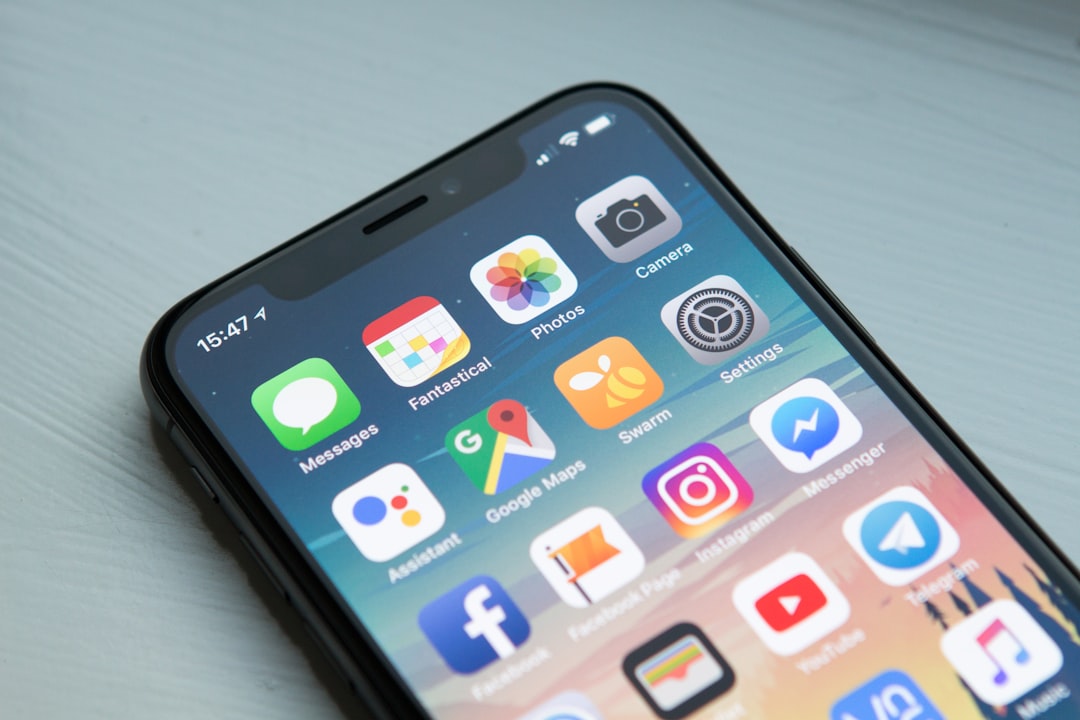
Foldable Workflow: Use Samsung One UI Multi‑Window to Produce Video on the Go

Protecting Your Gear and Deadlines: Redundancy Plans for Creator Supply Chains
Batching, Incubation, and the Science of Timing: A Productivity Playbook for Influencers

Use Procrastination to Power Your Creative Process (Without Missing Deadlines)
From Our Network
Trending stories across our publication group

What Retail AI Can Teach Internal Knowledge Search

From Marketing to DevOps: Practical Use Cases for Autonomous AI Agents in Engineering Workflows

How to Test a New Productivity Tool Without Disrupting the Whole Team
Automate Repetitive Study Tasks on Android Without Coding
The Smartest First Camera Buy Isn’t the Cheapest One: How to Avoid Regret Purchases
